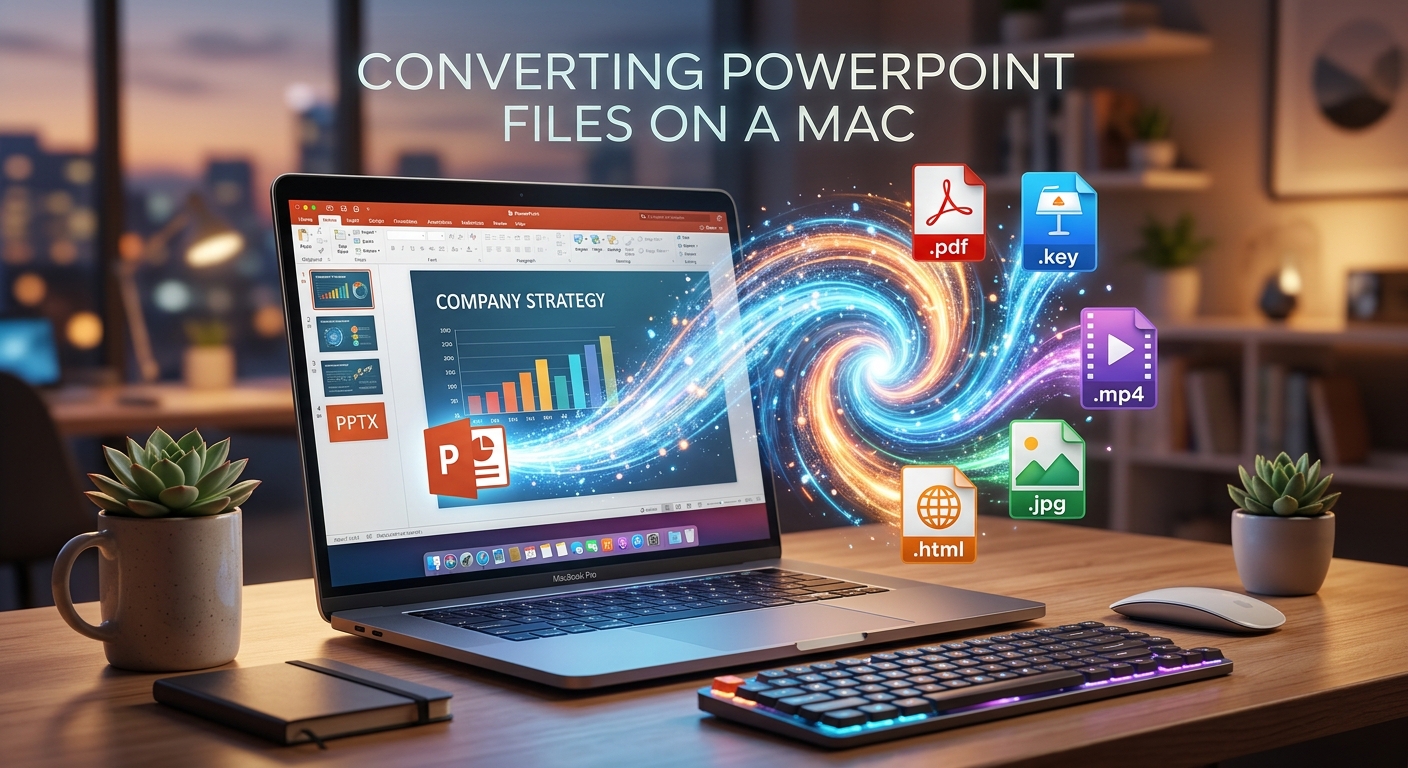
Your presentation looks right on your Mac, but the person receiving it needs a PDF. Or you need one slide as an image for an email. Converting a PowerPoint file sounds simple until fonts shift, pictures soften, or speaker notes appear where you did not expect them. The easiest route starts with choosing what the finished file needs to do. From there, you can use PowerPoint, Keynote, or a browser-based service, then check the result in Preview before sharing it.
Your Mac Conversion Plan: Keep the original presentation, then choose an output that matches the job. PDF suits reading and printing. PNG or JPG suits individual slide images. PPTX suits continued editing. Export from PowerPoint when it is available, or consider Keynote and a free browser-based converter for other situations. Before sharing, open the finished file, compare difficult slides, check page order, and confirm that private notes or hidden content have not slipped into the output.
Choose the Format Your Recipient Actually Needs
A file conversion changes more than the letters after its name. It can also change which parts of your presentation remain usable. Decide whether the recipient needs to read the slides, edit them, print them, or watch them play.
PDF is usually a sensible choice for a handout or an email attachment. It presents the slides as fixed pages. Recipients can read them without opening the original presentation, although the PDF still needs checking for layout problems.
PNG and JPG turn slides into pictures. They suit newsletters, website graphics, and documents that need a slide illustration. PNG is often a useful choice for text and diagrams. JPG can suit photo-heavy slides when a smaller file matters, but heavy compression can make lettering fuzzy.
PPTX keeps the presentation editable. Choose it when someone needs to change text, rearrange slides, or continue working on the deck. A PDF or image cannot preserve the full editing structure of the original PowerPoint file.
If your presentation depends on movement, sound, or timed narration, a static format will lose part of the experience. Consider a video export where supported, or share the presentation in a format that preserves playback.
Prepare the Presentation Before Converting It
Make a duplicate of the original file in Finder before changing anything. Give the copy a clear name, perhaps “Workshop-slides-for-export.pptx.” Keep the original available in case you need to restore an animation, replace a picture, or create a different output later.
Open the working copy and check for missing-font messages. A substitute font may change line breaks and push text outside a box. Fix the source presentation before converting it. Repeatedly exporting a broken layout will only produce more broken copies.
Check whether pictures and media are actually available. A presentation received from someone else may depend on linked content that is missing from your Mac. Browse through every slide rather than assuming that the opening slide represents the whole file.
Review hidden slides, comments, and speaker notes. Decide what belongs in the shared version. Export settings can treat these items differently, and a handout layout may include information that a slide-only PDF would omit.
Export a PDF From PowerPoint on Your Mac
If PowerPoint is already installed, start there. Open the presentation and look under File for Export. Choose PDF from the available formats. Some versions also offer PDF through Save As, and the wording can vary with the edition you use.
Choose a destination folder and a descriptive filename. Check any available options for slide range, output quality, or distribution. If your version offers an accessibility setting, review it before exporting. Creating a PDF does not, by itself, prove that the document is accessible.
Export the file, then open the saved PDF in Preview. Compare the page count with the slides you intended to include. Look closely at slides containing charts, equations, unusual fonts, or overlapping objects.
You can also use File, then Print, and choose a PDF option from the macOS print dialog. Check the preview carefully. Print settings can introduce multiple slides per sheet, unwanted margins, or notes layouts. For a straightforward slide document, the presentation app’s PDF export is usually the clearest starting point.
Use Keynote When PowerPoint Is Unavailable
If Keynote is installed on your Mac, it can provide another route for opening a PowerPoint presentation and exporting a PDF. Work from a duplicate because importing into another presentation app can change how some elements appear.
Open the file in Keynote and read any compatibility messages. Check fonts, charts, transitions, and media before exporting. A slide that looks simple may still contain an effect or object that does not transfer cleanly.
Choose File, then Export To, and select PDF. Review the available settings and save the output. Open that PDF in Preview and compare it with the imported presentation.
If another person needs an editable PowerPoint file afterward, export a separate PowerPoint copy and check that file too. Moving between presentation apps can introduce changes in either direction. Keep the original PPTX as your reference.
Use a Browser-Based Service for Occasional Conversions
A free browser-based PowerPoint converter fits naturally when you need an occasional conversion without installing another app. This can be useful on a Mac with limited storage or when your usual presentation software is unavailable.
Before selecting a file, check which input and output formats the service currently offers. Confirm that it supports your presentation type and the result you need. Review any file-size limits, account requirements, or restrictions on free use before starting.
The general process is straightforward: select the presentation, choose the available output, start the conversion, and download the finished file. Exact controls depend on the service. Keep the browser tab open until the download has completed.
Use a non-sensitive sample presentation for your first attempt. Include a text-heavy slide, a photograph, and a chart. That small trial helps you judge layout quality before processing a longer deck.
A browser-based workflow also reduces the need to choose between Intel and Apple Silicon installer packages. Your browser version and the service’s requirements still matter. If conversion fails, check those requirements before assuming your Mac’s processor is the cause.
Check Privacy Before Selecting a File
Before using an online converter, find out how it handles documents. A browser interface does not tell you whether processing happens on your Mac or on a remote server. Read the privacy and file-handling information for the service you intend to use.
Look for clear information about uploads, retention, deletion, and access. Avoid assuming that closing a tab removes an uploaded presentation. If the explanation is unclear, use an approved local workflow for private material.
Work presentations may include customer names, internal figures, comments, or confidential notes. Follow your organisation’s document-sharing rules. For personal files, consider whether the slides contain addresses, family photographs, or other details you would prefer to keep on your Mac.
Local work deserves a privacy check too. A file saved to an automatically synced folder may be copied to cloud storage. Choose a destination that matches how you want the document stored and shared.
Turn Exported Slides Into Images With Preview
Preview becomes useful once your presentation is a PDF. It handles PDFs and images, but it is not a PowerPoint editing app. Export the deck to PDF first, then use Preview for the image conversion stage.
Open the PDF and show its thumbnails. Select the page you need, then choose File and Export. Select PNG or JPEG from the format options. Check the resolution and, for JPEG, the quality setting before saving.
Open the saved image and confirm that it contains the intended slide. Do not assume that one export command will create a separate image for every page. For a few slides, exporting individually is manageable. For a large deck, check whether your presentation app offers a direct all-slides image export.
Avoid screenshots when a proper export is available. Screenshots depend on the display size and zoom level. An exported image gives you more control over the resulting dimensions.
Inspect the Finished File Before Sharing It
Successful conversion means more than receiving a download. Open the actual saved file and check what your recipient will receive. Spend extra time on the slides most likely to change.
- Content: Confirm that all intended slides appear in the correct order.
- Text: Look for substituted fonts, clipped headings, missing symbols, and changed line breaks.
- Pictures: Check photographs, logos, charts, and diagrams at normal viewing size.
- Links: Test any links that recipients need to use.
- Privacy: Check for unwanted notes, comments, hidden slides, or identifying details.
- Usability: Try selecting text in the PDF and confirm that the file meets any accessibility requirements.
If the result looks wrong, return to the original presentation and fix the source. Converting the faulty output into another format rarely restores missing text or lost detail.
Keep File Size Manageable Without Losing Readability
A large PDF often starts with large pictures in the presentation. Resize or compress oversized images in a working copy before exporting. Check small labels afterward, especially in screenshots and charts.
Preview may offer a Reduce File Size filter when exporting a PDF. Save the compressed version under a new name. This filter can reduce image clarity, so compare the result before replacing anything.
For images, test a single slide before converting the entire deck. Use enough resolution for the intended display or print size. Higher settings create larger files, but they cannot recover detail missing from the source.
Send Slides That Are Ready to Open
A dependable Mac conversion workflow is simple: preserve the original, choose the right format, convert a copy, and inspect the saved result. PowerPoint and Keynote can handle presentation exports. Preview helps with PDF checking and individual image outputs. A free browser-based service adds a convenient option when installing software would complicate an occasional task.
Keep the editable presentation alongside the final PDF or images. Use clear filenames and send only the version your recipient needs. That small habit makes future updates easier and helps ensure that the file leaving your Mac is the one you meant to share.